Programmatic ERD updates
The problem
Your database schema changes every time someone merges a migration. Your ERD on dbdiagram.io doesn't update itself. Left alone, the two drift apart: the diagram stops matching the real schema, and the team stops trusting it.
This guide shows you how to close that gap. You'll set up a GitHub Actions workflow that regenerates DBML from your database and pushes it to dbdiagram.io on every push to main, so the diagram always reflects what's actually in the database.
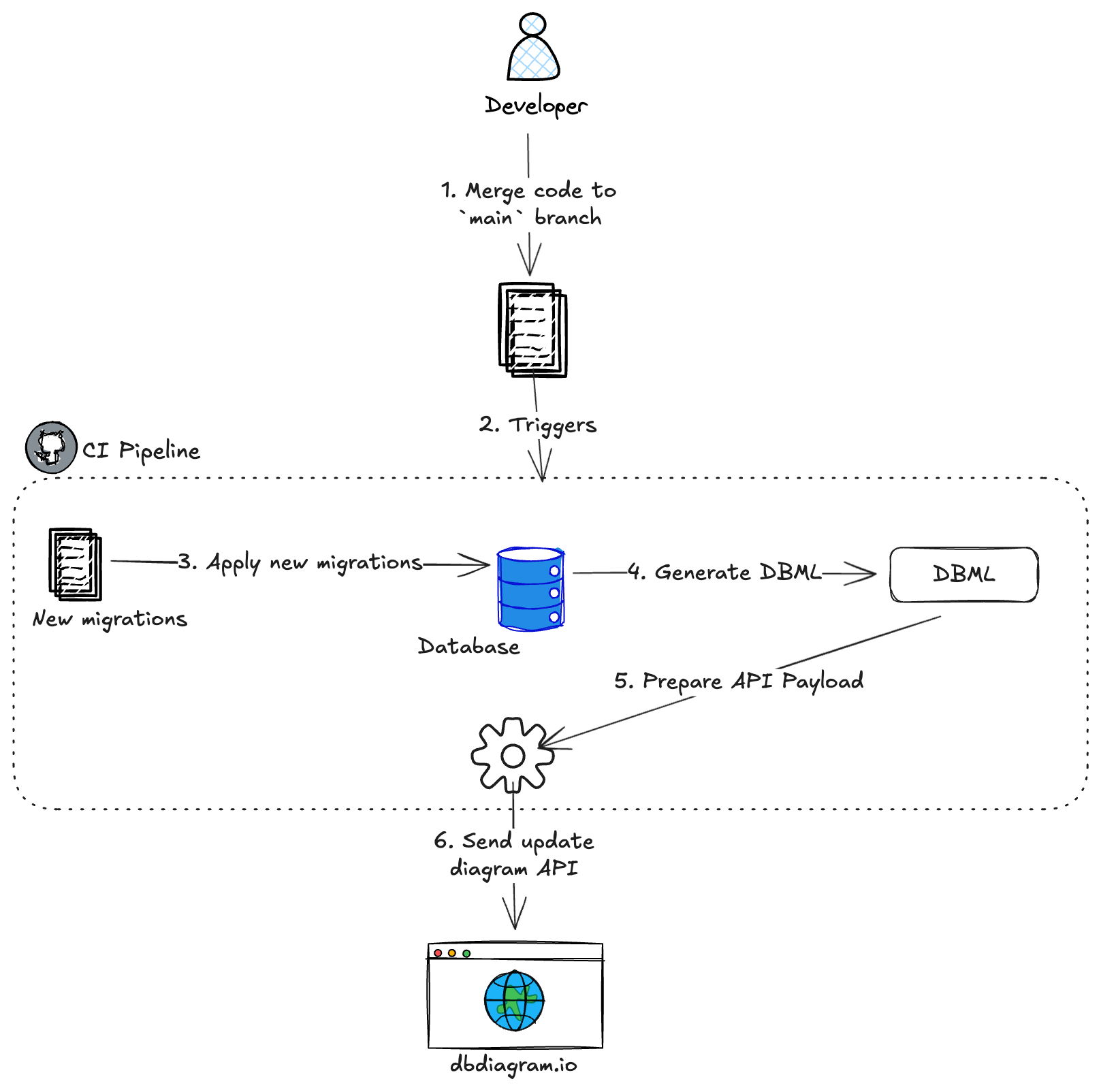
Which approach should you use?
There are two ways to push the generated DBML to dbdiagram.io:
- dbdiagram CLI (recommended): one command,
dbdiagram push, handles the request, authentication, and error handling for you. Use this unless you have a specific reason not to. - Public API: a raw HTTP call. Use this if you can't install an extra CLI in your CI environment, or you need direct control over the HTTP request.
Both approaches share the same setup below and only differ in the final "push" step of the workflow.
Prerequisites and shared setup
1. Project & environment
- A project hosted in a Git repository (this guide uses GitHub Actions for its examples).
- A database schema managed by a migration tool (Sequelize, Knex, Flyway, Prisma, etc.).
- Node.js 22 or higher in your CI environment.
2. Generate DBML from your database
Both approaches need a schema.dbml file. You generate it with @dbml/cli, which introspects your database and converts its schema to DBML.
- npm
- Yarn
- pnpm
npm install -g @dbml/cli
yarn global add @dbml/cli
pnpm add -g @dbml/cli
db2dbml postgres "postgresql://user:pass@host:5432/db" -o schema.dbml
@dbml/cli only reads your database's current schema, it doesn't push anything anywhere. Neither the CLI push nor the API call happens until the next step.
3. Create a diagram and get its ID
Create a new, empty diagram at dbdiagram.io/d, then copy its ID from the URL. In the example below, the diagram ID is 69608c68d6e030a02488f144.

Store the ID as a repository secret named DIAGRAM_ID (Settings > Secrets and variables > Actions).
Approach A: dbdiagram CLI
The dbdiagram CLI wraps the push, authentication, and error handling into one command: dbdiagram push. It also supports pull and publishing docs to dbdocs, see the CLI documentation for the full reference.
Authenticate. Generate a CLI token for CI use:
dbdiagram tokens generate
Store the token as a repository secret named DBDIAGRAM_TOKEN.
DBDIAGRAM_TOKEN (CLI token) and DBDIAGRAM_API_TOKEN (Public API token, used in Approach B) are different credentials. They aren't interchangeable.
Workflow file. Create .github/workflows/update_erd.yml:
name: Update dbdiagram.io ERD

on:
  push:
    branches:
      - main

jobs:
  update-erd:
    runs-on: ubuntu-latest

    env:
      DATABASE_URL: postgresql://postgres:postgres@localhost:5432/test_db

    services:
      postgres:
        image: postgres:17
        env:
          POSTGRES_USER: postgres
          POSTGRES_PASSWORD: postgres
          POSTGRES_DB: test_db
          POSTGRES_HOST_AUTH_METHOD: trust
        ports:
          - 5432:5432
        options: >-
          --health-cmd pg_isready
          --health-interval 10s
          --health-timeout 5s
          --health-retries 5
          --health-start-period 20s
          --health-cmd="pg_isready -U postgres"

    steps:
      - name: Checkout repository
        uses: actions/checkout@v4

      - name: Set up Node.js
        uses: actions/setup-node@v4
        with:
          node-version: '22'

      - name: Install dependencies
        run: npm install

      - name: Install DBML CLI
        run: npm install -g @dbml/cli

      - name: Apply database migrations
        run: npx prisma migrate deploy

      - name: Generate DBML from database
        run: db2dbml postgres "postgresql://postgres:postgres@localhost:5432/test_db" -o schema.dbml

      - name: Push to dbdiagram.io
        run: |
          npm install -g dbdiagram
          dbdiagram push schema.dbml --diagram-id ${{ secrets.DIAGRAM_ID }}
        env:
          DBDIAGRAM_TOKEN: ${{ secrets.DBDIAGRAM_TOKEN }}
Approach B: Public API
The Public API is a raw HTTP endpoint. It gives you full control over the request but you have to write the auth headers, payload, and error handling yourself. It's a Pro plan feature; see pricing.
Authenticate. Generate an API Access Token from the Workspace Modal > API Tokens tab in your dbdiagram account. Store it as a repository secret named DBDIAGRAM_API_TOKEN.
Endpoint. PUT https://api.dbdiagram.io/v1/diagrams/<DIAGRAM_ID>, with the token in a dbdiagram-access-token header and a JSON body containing name and content:
{ "name": "Automated ERD", "content": "<dbml content>" }
Workflow file. Create .github/workflows/update_erd.yml. The final step checks the HTTP status code and fails the job if the push didn't succeed:
name: Update dbdiagram.io ERD

on:
  push:
    branches:
      - main

jobs:
  update-erd:
    runs-on: ubuntu-latest

    env:
      DATABASE_URL: postgresql://postgres:postgres@localhost:5432/test_db

    services:
      postgres:
        image: postgres:17
        env:
          POSTGRES_USER: postgres
          POSTGRES_PASSWORD: postgres
          POSTGRES_DB: test_db
          POSTGRES_HOST_AUTH_METHOD: trust
        ports:
          - 5432:5432
        options: >-
          --health-cmd pg_isready
          --health-interval 10s
          --health-timeout 5s
          --health-retries 5
          --health-start-period 20s
          --health-cmd="pg_isready -U postgres"

    steps:
      - name: Checkout repository
        uses: actions/checkout@v4

      - name: Set up Node.js
        uses: actions/setup-node@v4
        with:
          node-version: '22'

      - name: Install dependencies
        run: npm install

      - name: Install DBML CLI
        run: npm install -g @dbml/cli

      - name: Apply database migrations
        run: npx prisma migrate deploy

      - name: Generate DBML from database
        run: db2dbml postgres "postgresql://postgres:postgres@localhost:5432/test_db" -o schema.dbml

      - name: Sync and verify DBML to dbdiagram.io
        run: |
          DBML_CONTENT=$(cat schema.dbml)
          JSON_PAYLOAD=$(printf '{ "name": "Automated ERD", "content": %s }' "$(echo "$DBML_CONTENT" | jq -Rs .)")

          # Make the API call, capturing both response body and status code
          RESPONSE=$(curl -s -w "\n%{http_code}" --location --request PUT "https://api.dbdiagram.io/v1/diagrams/${{ secrets.DIAGRAM_ID }}" \
          --header "dbdiagram-access-token: ${{ secrets.DBDIAGRAM_API_TOKEN }}" \
          --header "Content-Type: application/json" \
          --data "${JSON_PAYLOAD}")

          # Extract status code (last line) and response body (everything else)
          HTTP_STATUS=$(echo "$RESPONSE" | tail -n1)
          RESPONSE_BODY=$(echo "$RESPONSE" | sed '$d')

          # Check if the sync was successful (HTTP status 2xx)
          if [ $HTTP_STATUS -ge 200 ] && [ $HTTP_STATUS -lt 300 ]; then
            echo "Success! Diagram updated. Status: $HTTP_STATUS"
          else
            echo "Error! Failed to update diagram. Status: $HTTP_STATUS"
            echo "$RESPONSE_BODY"
            exit 1
          fi