Auto-Provisioning with SCIM
SCIM Provisioning is only available in our Custom plan
Introduction
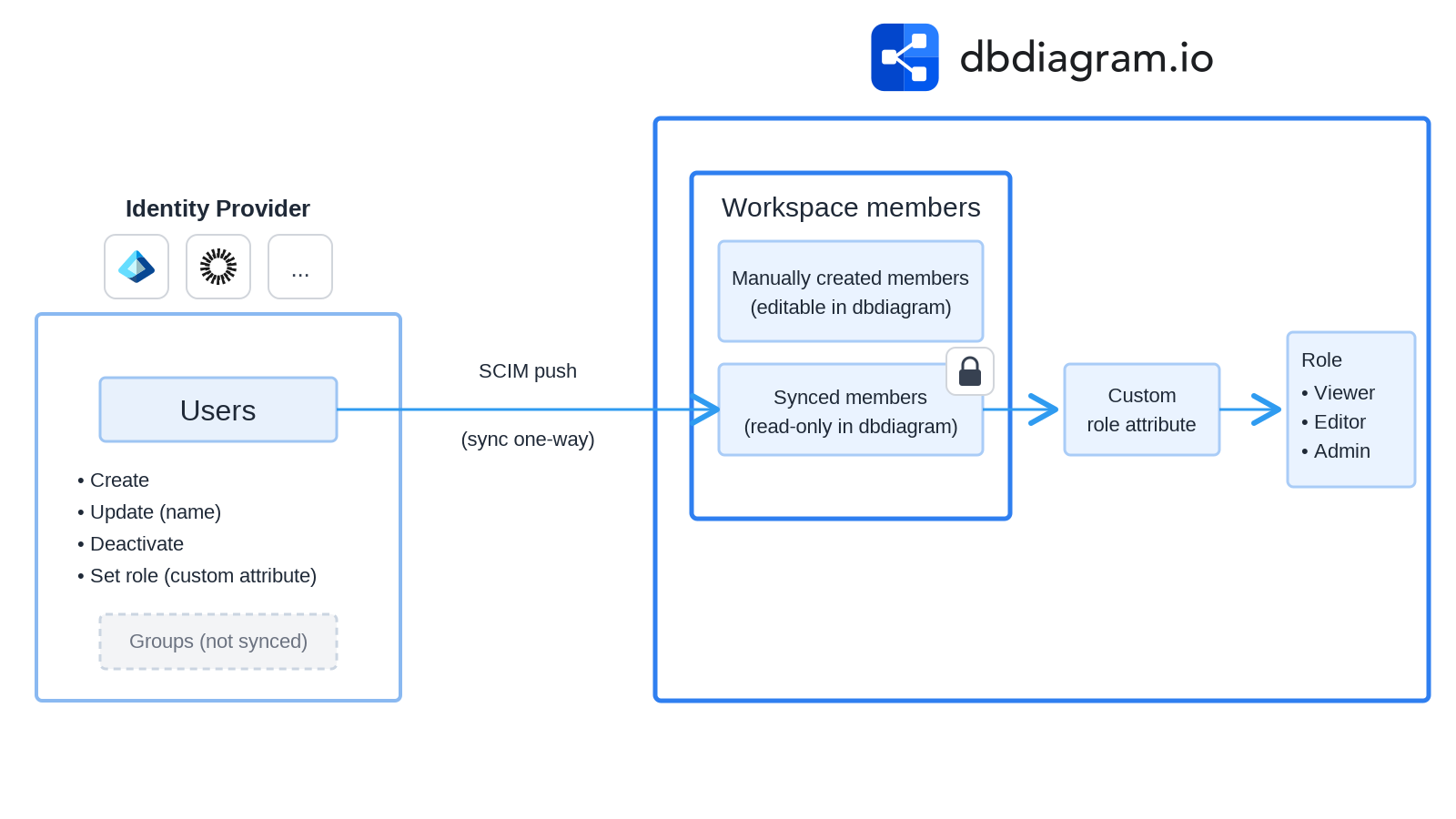
SCIM automatically syncs users from your identity provider (Okta, Microsoft Entra ID, etc.) to dbdiagram. Manage access in one place: add or remove users in your IdP, and dbdiagram stays in sync.
Before you begin
- SAML SSO configured: Your organization must have SAML Single Sign-On set up before enabling SCIM.
- Admin access: You must be the workspace owner in dbdiagram and an administrator in your identity provider.
- User license availability: Ensure your workspace has enough user licenses in your Custom plan. When syncing, existing members (same email) get linked without using extra licenses, but new members consume licenses. Provisioning fails if it exceeds your workspace's user license limit.
How SCIM works
SCIM provisioning in dbdiagram is one-way only, changes flow from your identity provider to dbdiagram, not the other way around. Once enabled, all user changes should be made in your identity provider.
Concept mapping
Your identity provider and dbdiagram use different terms for the same concepts:
| Identity provider | dbdiagram |
|---|---|
| User | Workspace's member |
Identity providers support groups, but dbdiagram does not have this concept, so nothing is synced for groups.
What gets synced
| Feature | Supported | Example |
|---|---|---|
| Create members | ✅ | You assign a new user to the dbdiagram app in your identity provider |
| Update member profiles | ✅ | You update a user's display name in your identity provider |
| Deactivate members | ✅ | You remove a user from the dbdiagram app in your identity provider |
Two types of members
Once SCIM is enabled, you'll have two types of members in dbdiagram:
-
Synced members are automatically created and managed through your identity provider. They cannot be edited directly in dbdiagram. Any changes (name, avatar) must be made in your IdP. By default, synced members are assigned the Viewer role.
-
Manually-created members are members you create directly in dbdiagram. You can still add members manually if needed. If a user with the same email is later synced from your identity provider, they become a synced member.
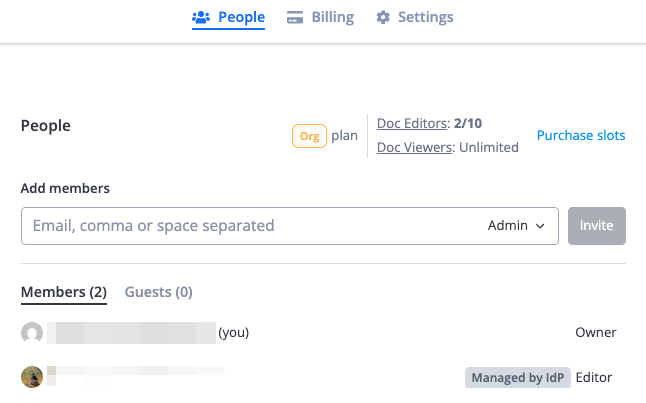
If the Managed by IdP tag is shown in the user record in your workspace's members page, this member is managed through your identity provider.
Set up SCIM in dbdiagram
Follow these steps to enable SCIM provisioning for your organization.
Step 1: Enable SCIM provisioning
- Navigate to Workspace's Settings > Single Sign-On.
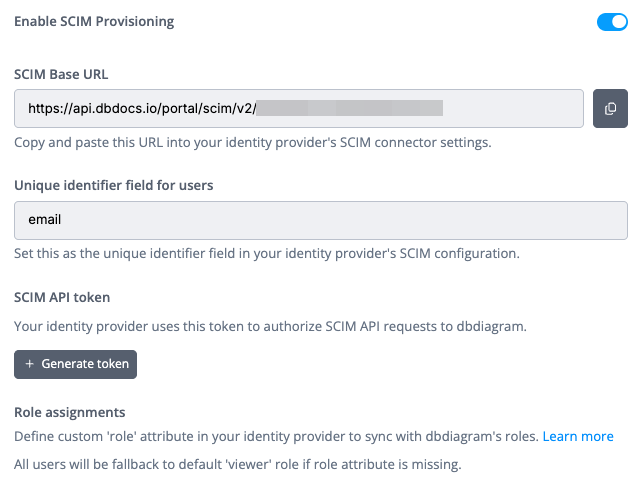
- Toggle Enable SCIM Provisioning to on.
- Once enabled, you'll see:
- SCIM Base URL: The endpoint for your identity provider
- Unique identifier field for users: The field your identity provider uses to identify users (
email) - SCIM API token: Click Generate token to create the token your identity provider uses to authenticate SCIM requests
- Role assignments: How roles are synced from your identity provider. See Add custom
roleattribute
Step 2: Configure your identity provider
Base configurations
Now configure SCIM provisioning in your identity provider using the SCIM Base URL and SCIM API Token from dbdiagram. Follow the guide for your identity provider:
Start with a small pilot group, confirm provisioning behaves as expected, then expand to your whole organization.
Validating on a few users first lets you confirm that user creation, profile updates and deactivation all sync correctly. It also caps the blast radius of any misconfiguration: SCIM syncs automatically and continuously, so changes propagate on their own once you enable it.
Okta: Set up SCIM with Okta
Microsoft Entra ID (Azure AD): Set up SCIM with Microsoft Entra ID
For other identity providers, refer to your provider's SCIM documentation using the SCIM Base URL and SCIM API Token from dbdiagram.
Add custom role attribute
By default, all synced members get the Viewer role (least permissions). To assign different roles, create a custom role attribute in your IdP's SCIM configuration.
Configure role mapping before syncing users from your identity provider. Otherwise, all synced members will default to the Viewer role, which could lock you out.
dbdiagram reads the role from a custom user attribute defined in its own SCIM extension. You need to add this attribute to your IdP's user schema and fill it for each user.
| Item | Value |
|---|---|
| Extension schema | urn:ietf:params:scim:schemas:extension:dbdiagram:2.0:User |
| Attribute | role (string, single value) |
| Supported values | admin, editor, viewer |
| Required | No. Users without a role default to Viewer. |
The full attribute name is the schema followed by the attribute: urn:ietf:params:scim:schemas:extension:dbdiagram:2.0:User:role. In SCIM requests, your IdP sends the role inside the extension object:
{
  "schemas": [
    "urn:ietf:params:scim:schemas:core:2.0:User",
    "urn:ietf:params:scim:schemas:extension:dbdiagram:2.0:User"
  ],
  "userName": "[email protected]",
  "urn:ietf:params:scim:schemas:extension:dbdiagram:2.0:User": {
    "role": "editor"
  }
}
How you add the attribute varies per IdP. Follow the guide for yours:
Okta: Set up custom role attribute in Okta
Microsoft Entra ID (Azure AD): Set up custom role attribute in Microsoft Entra ID
For other identity providers, refer to your provider's SCIM documentation to add a custom user attribute using the extension above.
Transitioning existing workspaces
If you already have members in dbdiagram, here's what happens to them when you enable SCIM:
- They won't be deleted.
- If a user from your IdP has the same email as an existing dbdiagram member, they become linked.
- Linked members can no longer be edited directly in dbdiagram.
- Their role will be determined by custom
roleattribute. If noroleassigns, they default to Viewer.
Disable SCIM provisioning
If you need to stop using SCIM:
- Go to Workspace's Settings > Single Sign-On.
- Toggle Enable SCIM Provisioning to off, then click Save Single Sign-On Settings
- Previously synced members will remain in dbdiagram but become editable again.
Disabling SCIM doesn't delete any members. It only stops the automatic sync from your identity provider.
FAQs
Can I still add members directly in dbdiagram after enabling SCIM?
Yes, you can still manually add members. However, we recommend managing all members through your identity provider for consistency.
What happens if I delete a user in my identity provider?
When you remove or deactivate a user in your identity provider, dbdiagram deactivates the account instead of erasing it. The user appears as Deactivated in the workspace's members page, but their diagrams and projects are preserved. They can't access the workspace and their data unless reactivating later.
This does not happen the moment you make the change in your identity provider. It takes effect only once your provider pushes the change to dbdiagram, which can take a while. See how often your identity provider syncs below.
Can I use SCIM without SAML SSO?
No, SAML SSO must be configured before enabling SCIM. This ensures users authenticate through your identity provider rather than with separate dbdiagram passwords.
How often does my identity provider sync with dbdiagram?
Sync frequency is controlled entirely by your identity provider, not by dbdiagram, and it is not configurable by an admin on either side. Delays range from near-instant to several hours depending on the provider, so plan for the change to land later than you make it.
Check your provider's own documentation for its provisioning schedule, for example Microsoft Entra ID or Google Workspace.
If you need to cut off someone's access immediately, don't wait for the sync to catch up.
What happens when I hit my workspace's user license limit and the IdP pushes a new user?
The provisioning request will fail, and the new member will not be created in dbdiagram. Your identity provider will receive an error response. You'll need to either increase your user license limit or remove existing members before provisioning new ones.
Limitations
- User's email change cannot be synced via SCIM. You will need to remove an existing user and add another one in your IdP as a workaround.
- Profile display: Profile updates synced via SCIM are saved, but the displayed profile may not match yet. This is a known limitation.
- You must configure SCIM in your IdP manually, there are no official integrations yet.