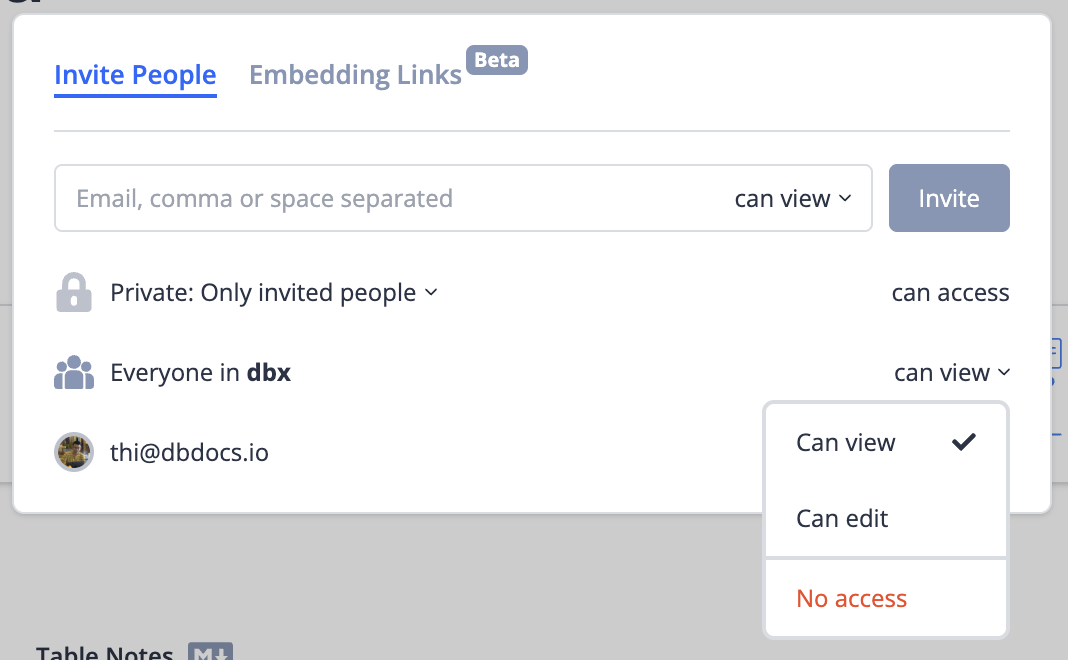
Access Control
Diagrams and dbdocs doc projects share the same three access levels. What differs is the plan limits.
- Public: anyone with the link can view it.
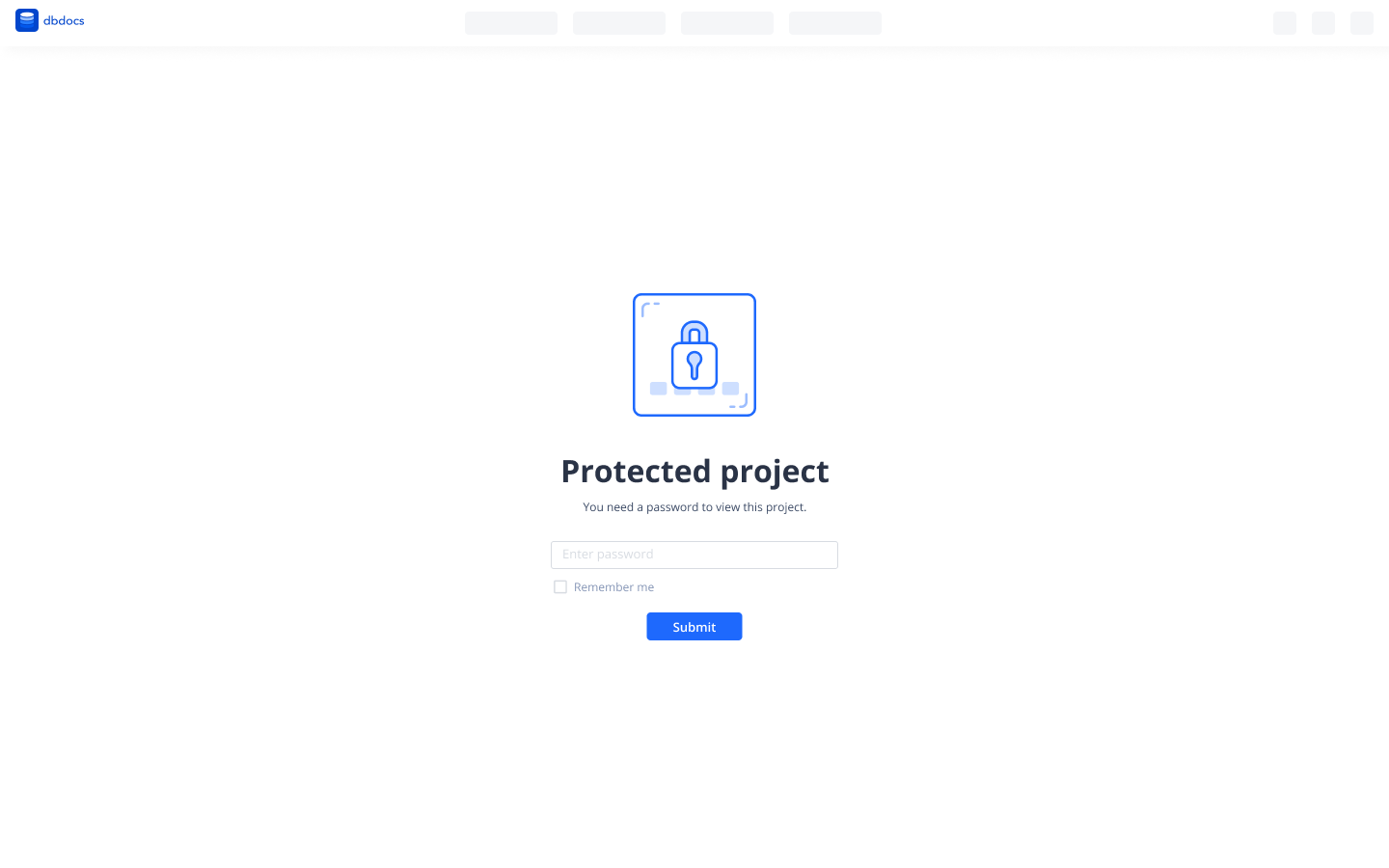
- Password-protected: anyone with the link and the password can view it.
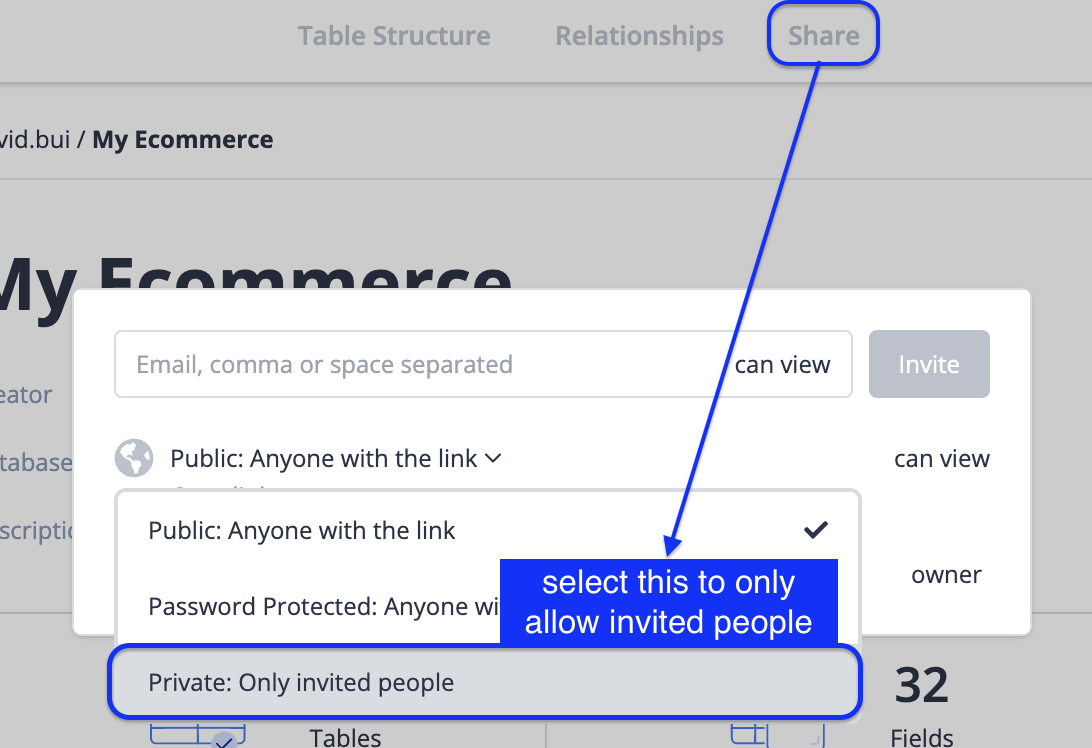
- Private: only invited people can view it.
New diagrams and new doc projects are private by default. Publish a public link when you want to share it.
What each plan allows
Diagrams
| Feature | Free | Personal Pro | Team |
|---|---|---|---|
| Public link sharing | ✅ | ✅ | ✅ |
| Password-protected link sharing | ❌ | ✅ | ✅ |
| Private mode | ✅ | ✅ | ✅ |
| Share with invited users | ❌ | • Guest viewers: Unlimited • Guest editors: Up to 4 free accounts per diagram, 6 per workspace (paid accounts unlimited) | • Guest viewers: Unlimited • Guest editors: Up to 4 free accounts per diagram, 6 per workspace (paid accounts unlimited) |
| Share with workspace members | ❌ | ❌ | • Viewers: Unlimited • Editors: 3 seats included, more available (based on workspace editor licenses) |
Guest editors are invited to a specific diagram. Only the Team plan gives every workspace member access to all diagrams in the workspace, where they can also create and delete. A free account invited beyond these limits can view the diagram until it is upgraded. Real-time co-editing is covered on Real-time Collaboration.
Doc projects
| Feature | Free | Personal Pro | Team |
|---|---|---|---|
| Public link sharing | ✅ | ✅ | ✅ |
| Password-protected link sharing | ✅ | ✅ | ✅ |
| Private mode | ✅ | ✅ | ✅ |
| Share with invited users | ❌ | • Guest viewers: Up to 5 per project • Guest editors: ❌ | • Guest viewers: Unlimited • Guest editors: Up to 6 per workspace |
| Share with workspace members | ❌ | ❌ | • Viewers: Unlimited • Editors: Unlimited (based on workspace editor licenses) |
Guest viewers and editors are invited to a specific doc project, not to the whole workspace. Workspace members on the Team plan reach every shared doc project in the workspace, according to their role.
Password protection
Diagrams
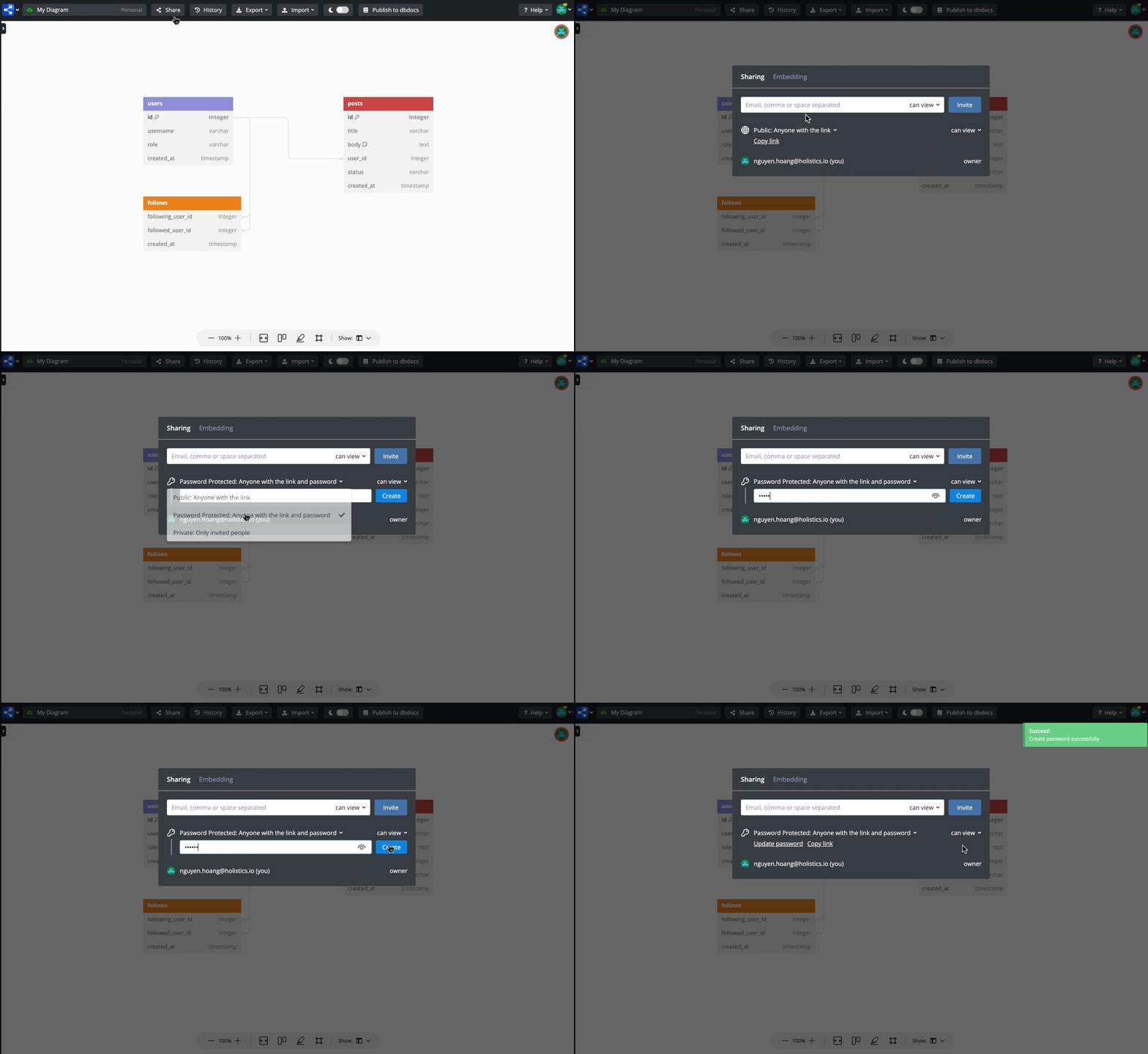
Apply a password from the diagram's share settings.
Doc projects
Use the "Share" button on the project page, or set it from the terminal:
$ dbdocs password --set <password> --project <project name>
✔ Password is set for <project name>
To be prompted instead of passing the password inline:
$ dbdocs password --project <project name>
? Enter password: [hidden]
? Re-enter password: [hidden]
✔ Password is set for <project name>
You can also set it while publishing:
$ dbdocs build <path to your dbml file>/database.dbml --password <password>
Pushing new database schema to project your_project...
✔ Password is set for 'Ecommerce'
Done. Visit: https://dbdocs.io/khanh-tran-quoc/Ecommerce
Remove it to make the doc project public again:
$ dbdocs password --remove --project <project name>
⚠ Password is removed from 'Ecommerce'
The dbdocs CLI is deprecated and stops receiving updates in 2027. See CI Integration.
Private mode
Diagrams
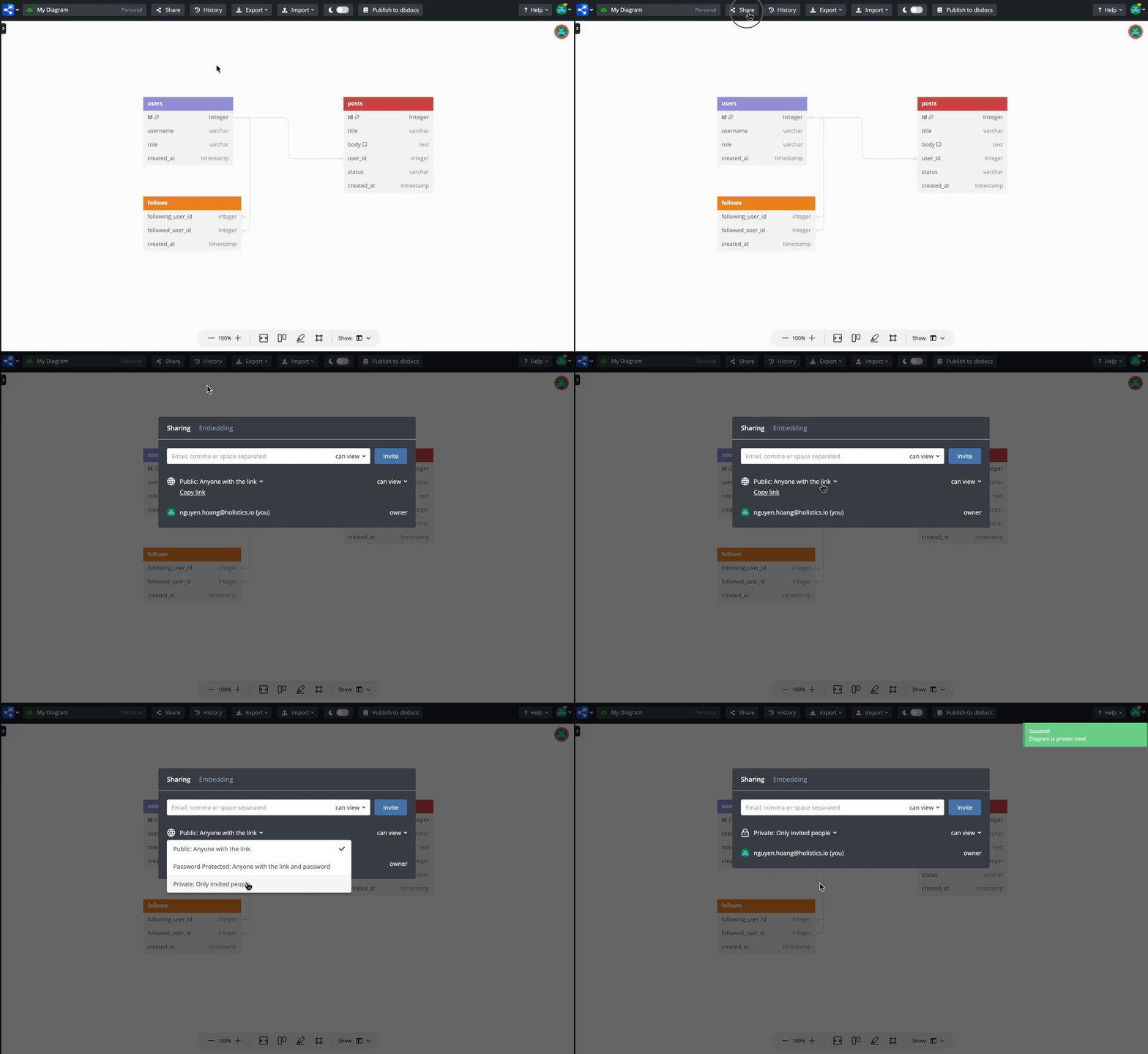
Switch the diagram to "Private" mode. Nobody else can open it.
Doc projects
Set the doc project to Private, then invite the people who need it.
Invite people
Diagrams
Invite colleagues by account email to view or edit a diagram together. See Real-time Collaboration.
Doc projects
Available in our Personal Pro plan (viewers only) and Team plan.
Invite users by email address with a specific permission.
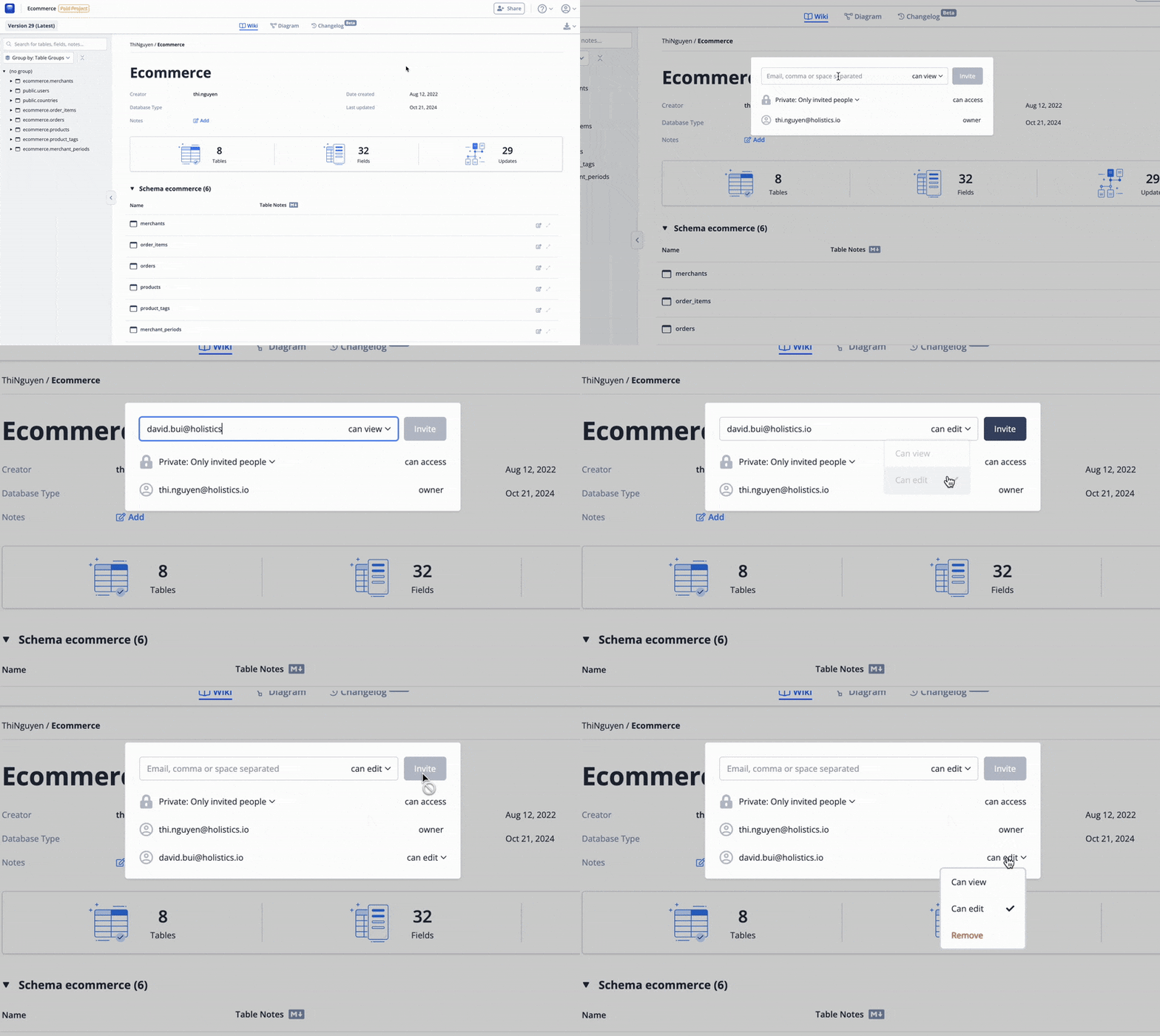
Someone with "can edit" permission can:
- Publish changes with
dbdiagram build document, or with the deprecateddbdocs build <dbml file path> --project <username>/<project name>. - Edit Markdown notes and diagram layouts directly on the doc project page.
Share with workspace members
Available in our Team plan.
A workspace on the Team plan is the shared home for your team's work, so members reach it without being invited one item at a time. See Workspaces.
Diagrams
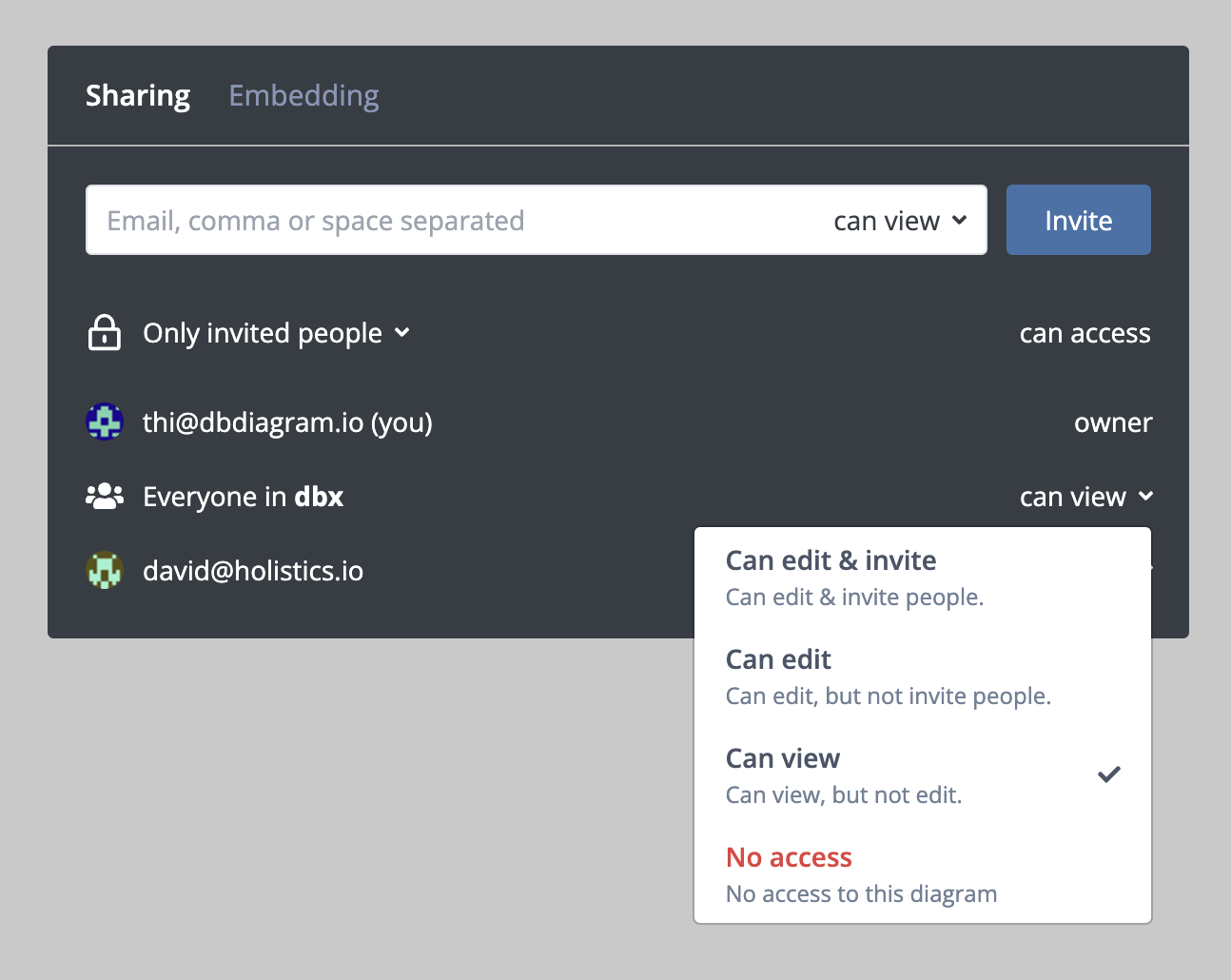
Diagrams in a Team-plan workspace belong to the team, and members can create, edit and delete them. Manage each diagram's access for teammates and guests from the diagram itself.
Doc projects
Share a doc project inside your workspace to give every member access.