πŸšͺ Login via Email

dbdocs

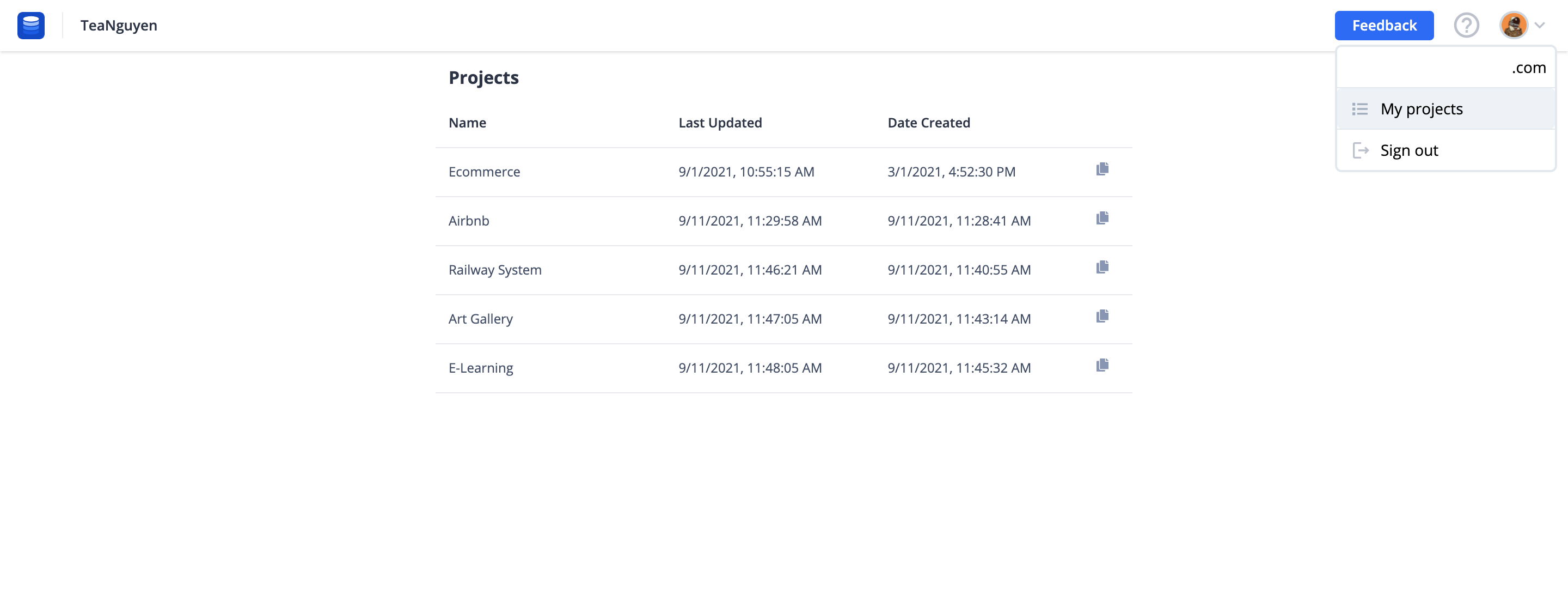
Since login via GitHub is the single option, many users have to use theirs personal GitHub account or even create a new one for documentation purposes.

With the dbdocs CLI version 0.5.0, feel free to connect dbdocs with your work email & improve the workflow now!


πŸ”„ CI Integration

dbdocs

Previously you couldn’t set up CI/CD with Gitlab, GitHub Actions, or CI server to automatically generate the docs, because our login process required a web browser and UI.

The dbdocs CLI version 0.4.0 now supports you to build documentation with your unique access token!

Read more about CI Integration in our docs.


πŸ”’ Private & Password-protected Diagrams - Personal Pro feature

dbdiagram

We understand that security is a big issue for you. That's why we've been working hard to release Private & Password-protected diagram feature.

Password protection​

By default, your diagram is public, which means anyone can view it via a shareable link.

To change your diagram privacy, click Share. You can then change privacy settings in Share & access pop-up.

Type in a password, then click Apply.

From now, people can only view the diagram if they enter the password correctly.

Password will have effects on both the diagram you share via a link and on your existing embedded diagram.

Private mode​

If you want to further restrict access to your diagram, turn off Public. In this private mode, only you can view and edit your design. Please note that password protection and embedded link will be disabled in Private mode.

Private & Password-protected diagrams are available in the Personal Pro plan. Learn more at dbdiagram.io/pricing


⏳✨ Version History - Personal Pro feature

dbdiagram

Quarter 3 is coming with summer trips, beaches and time machine. You can now roll back in time with Version History!

No more manual cloning your diagram to test new ideas. No more fear of accidental deletion.

Every time you save your diagram (by pressing Ctrl/Command + S, or hitting Save button), a version is created. Now you can:

  • freely experiment your schema
  • and roll back to a former version whenever you want

How to use it:

  • Click on the new "History" button to view all versions of your diagram
  • Click on a specific version to preview it
  • Choose "Restore version" to revert the version right inside your diagram. Choose "Make a copy" to make a new diagram from that version.

πŸ”‘ Support Composite Foreign Key

dbdiagram

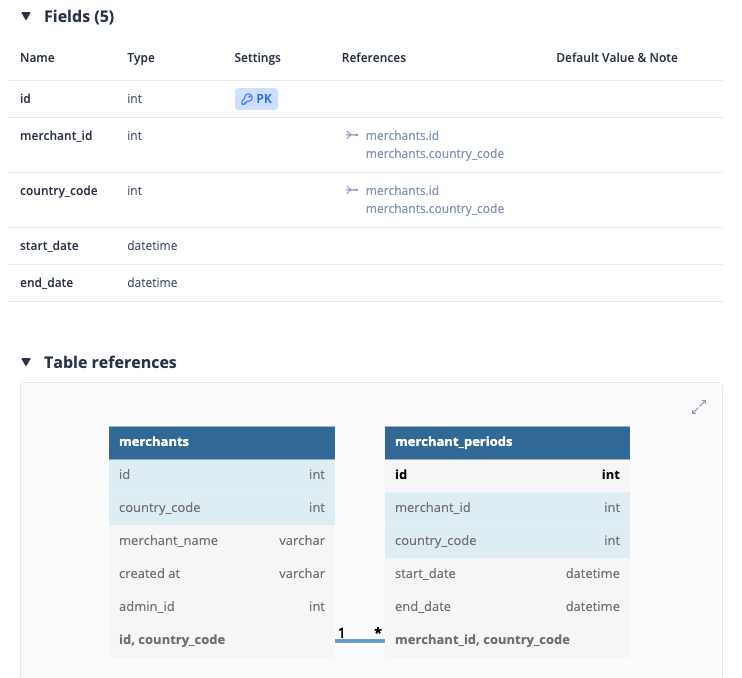
dbdiagram now support composite foreign key!

Syntax​

//Long form
Ref name_optional {
table1.(column1, column2,...) [<|>|-] table2.(columnA, columnB,...)
}

//Short form:
Ref name_optional: table1.(column1, column2,...) [<|>|-] table2.(columnA, columnB,...)

Example​

Table user {
id int
country_code int
}
Table account {
user_id int
country_code int
}
Ref: user.(id, country_code) - account.(user_id, country_code)